Creating a More Comfortable Desk Setup
A head-to-toe checklist for screen, chair, keyboard and feet, with notes for laptop users and on what employers may be required to do.
On this page
A comfortable desk is mostly a matter of small adjustments: a chair raised a little, a screen moved back, a mouse brought closer. This checklist runs from head to toe, using workstation guidance from occupational safety bodies in the United States, Canada and Great Britain. Work through it once at your desk; it takes about ten minutes.
One principle first. The Canadian Centre for Occupational Health and Safety (CCOHS) says no single sitting posture is right for everyone, and that changing position often is part of sitting well. The aim is a setup that makes a relaxed position easy and movement possible, not a pose to hold all day.
Before you start
Adjust in this order: chair, then keyboard and mouse, then screen. The screen position depends on where you end up sitting, so it goes last. If your chair does not adjust, skip to what you can change. A cushion, a box under the feet or a stack of books under a monitor are all fair tools.
Head and eyes
- Screen straight ahead. The US Occupational Safety and Health Administration (OSHA) checklist asks that the monitor sits directly in front of you, so head and neck do not twist.
- Top of the screen at or below eye level. That is OSHA’s wording. If you wear bifocals or varifocals, you may need it lower so you can read without tipping your head back.
- About arm’s length away. Sit back and reach out; your fingertips should roughly meet the screen. Increase the text size if you find yourself leaning in.
- No glare. If a window or lamp reflects on the screen, turn the screen or close the blind. OSHA also suggests adjusting brightness and contrast for comfort.
- Two screens. Put the one you use most directly ahead and the other beside it.
Neck and shoulders
- Head balanced over the body, not pushed forward towards the screen. OSHA describes this as ears roughly above shoulders.
- Shoulders low and relaxed. If they creep upwards, the desk or armrests are probably too high, or the chair too low.
- Phone calls. Holding a handset between ear and shoulder bends the neck. OSHA’s checklist says a headset may be needed if you use the phone and the computer at the same time.
Arms, wrists and hands
- Elbows close to your sides, bent at about a right angle or slightly more open, with forearms roughly level with the floor.
- Wrists straight, in line with the forearms, not bent up, down or sideways.
- Mouse next to the keyboard and at the same height, so you are not reaching forward or out to the side.
- No hard edge under the wrists. OSHA flags sharp or square desk edges pressing on forearms and wrists; move the keyboard back a little or pad the edge.
- Things you use often within easy reach. Items you rarely need can live further away.
Back
- Sit back in the seat so the backrest does the work.
- Support the lower back. CCOHS advises keeping the backrest’s lumbar support in the curve of the lower back. On a plain chair, a small cushion or rolled towel can do this.
- Upright or slightly reclined is fine, according to OSHA. Bolt upright is not required.
- Facing forward. If you often look at papers, put them between keyboard and screen or beside the screen at the same height, so you are not twisted for long periods.
Hips, legs and feet
- Thighs roughly level, with knees level with or a little lower than the hips, as CCOHS describes.
- A small gap behind the knees. CCOHS suggests about three fingers’ width between the seat’s front edge and the back of the knee, so the seat does not press there.
- Feet flat on the floor or on a footrest. If raising the chair to suit the desk leaves your feet dangling, a footrest or a sturdy box solves it.
- Room underneath. Clear boxes and bags from under the desk so your legs can move.
If you work on a laptop
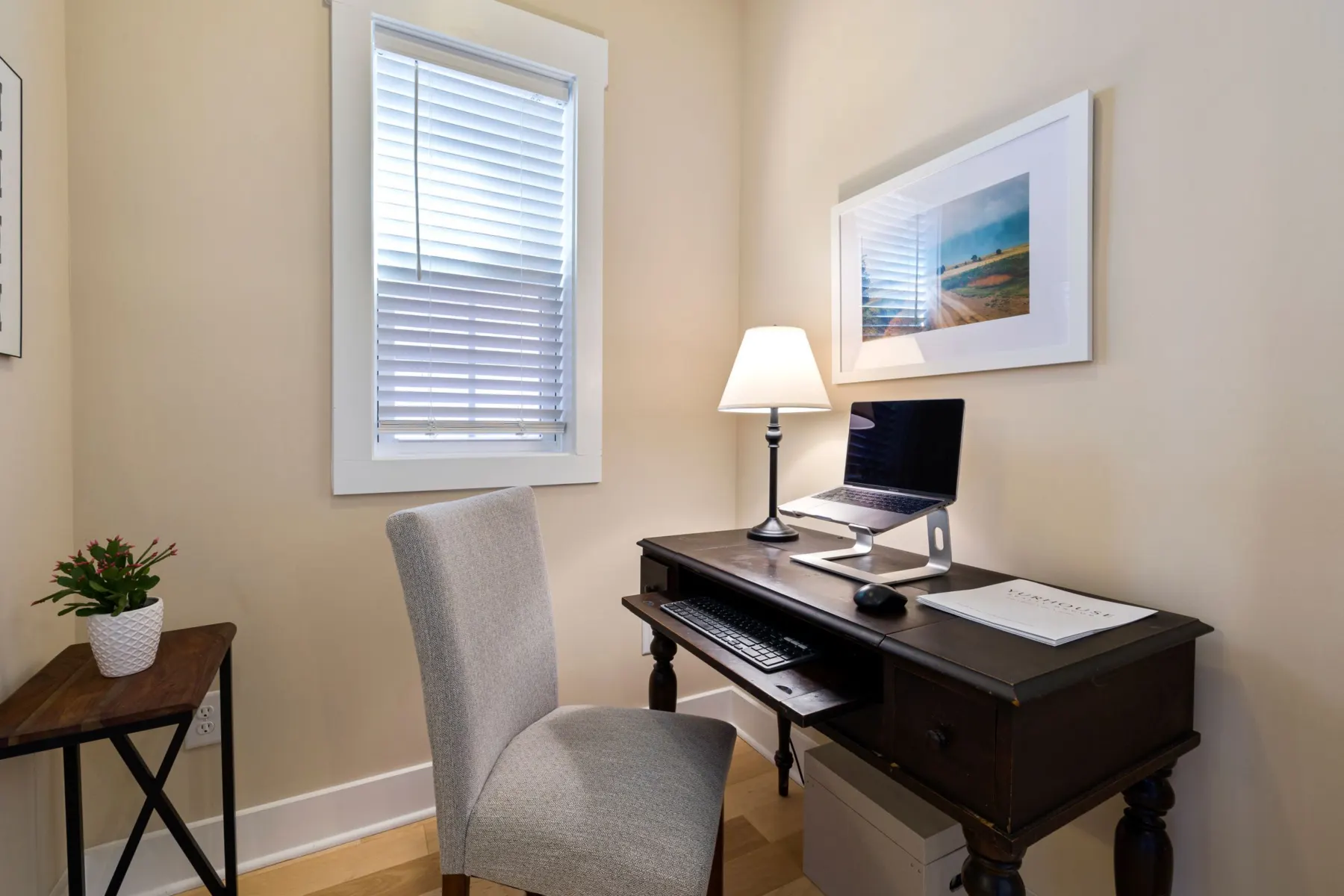
A laptop joins the screen to the keyboard, so one of them is always in the wrong place. OSHA’s checklist says a laptop used as a main computer should be set up like a desktop, with a separate keyboard and pointing device. In practice that means raising the laptop on a stand or a pile of books until the screen is near eye level, and plugging in a keyboard and mouse.
For laptop use away from a desk (OSHA’s examples are a plane or a hotel), its advice is simply to change posture regularly and keep the time short.
Then move
Even a well-adjusted desk does not make it comfortable to stay still for hours. OSHA’s checklist includes being able to alternate between sitting and standing without long periods of either. Guidance does not agree on a single time limit, so a workable rule is to change position before you feel stiff. See simple ways to break up long periods of sitting, and for the eyes, our guide to screen breaks.
What your employer may have to do
This depends on national law. In Great Britain, the Health and Safety Executive (HSE) says employers must assess the workstations of people who use display screen equipment daily for continuous periods of an hour or more, and reduce any risks found. A new assessment is due when the workstation changes or when a user reports pain or discomfort. HSE says the same regulations can apply to people who work at home long term or on a hybrid pattern; a worker who has been given suitable training may complete a self-assessment, and workers cannot be charged for equipment the assessment shows is needed.
Other countries have their own rules. If you are employed, your employer’s health and safety contact is the person to ask about an assessment, and planning breaks into a working day covers the related rules on breaks.
Sources
- Occupational Safety and Health Administration (US) Computer Workstations eTool: Checklists - Evaluation
- Canadian Centre for Occupational Health and Safety (Canada) Working in a Sitting Position - Good Body Position
- Health and Safety Executive (UK) Working safely with display screen equipment: Workstations and assessment
- Health and Safety Executive (UK) Working with display screen equipment at home
How this guide was prepared
Written by Meetis Editorial with AI assistance, using the sources listed above, and checked against them before publication. It has not been reviewed by a doctor or other health professional. It is general information, not personal medical advice — for questions about your own health, speak to a qualified professional.